

Appearance
Command
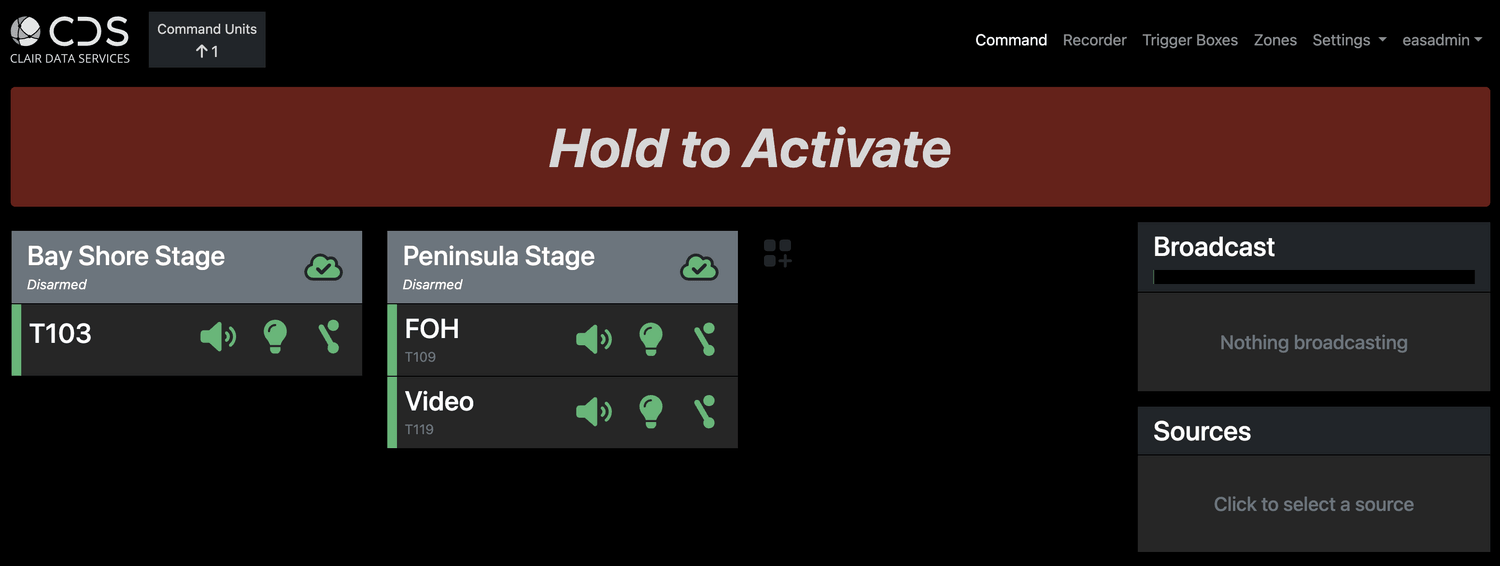
Clair EAS software provides a simple way to make emergency announcements across sites large and small. From the Command page, devices can be deployed, monitored, and controlled.
Zones
Zones are used to group trigger boxes together. Arm and disarm zones by clicking on them.
Trigger Boxes
Status
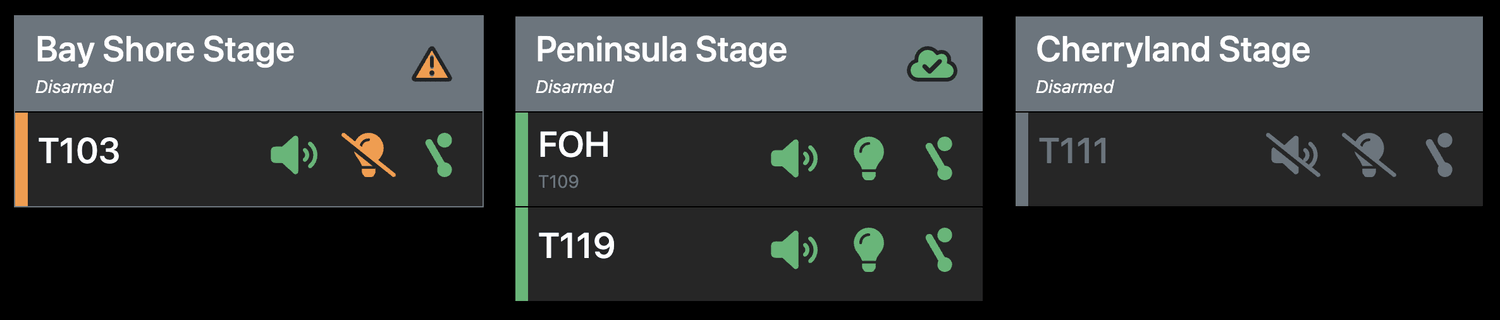
The Command page shows the status of trigger boxes. Icons indicate the connectivity status of the box, audio stream, light, and contact closure.
Settings
From the Settings menu:
- Change device name
- Adjust audio output settings
- Adjust EAS light standby brightness
Diagnostics
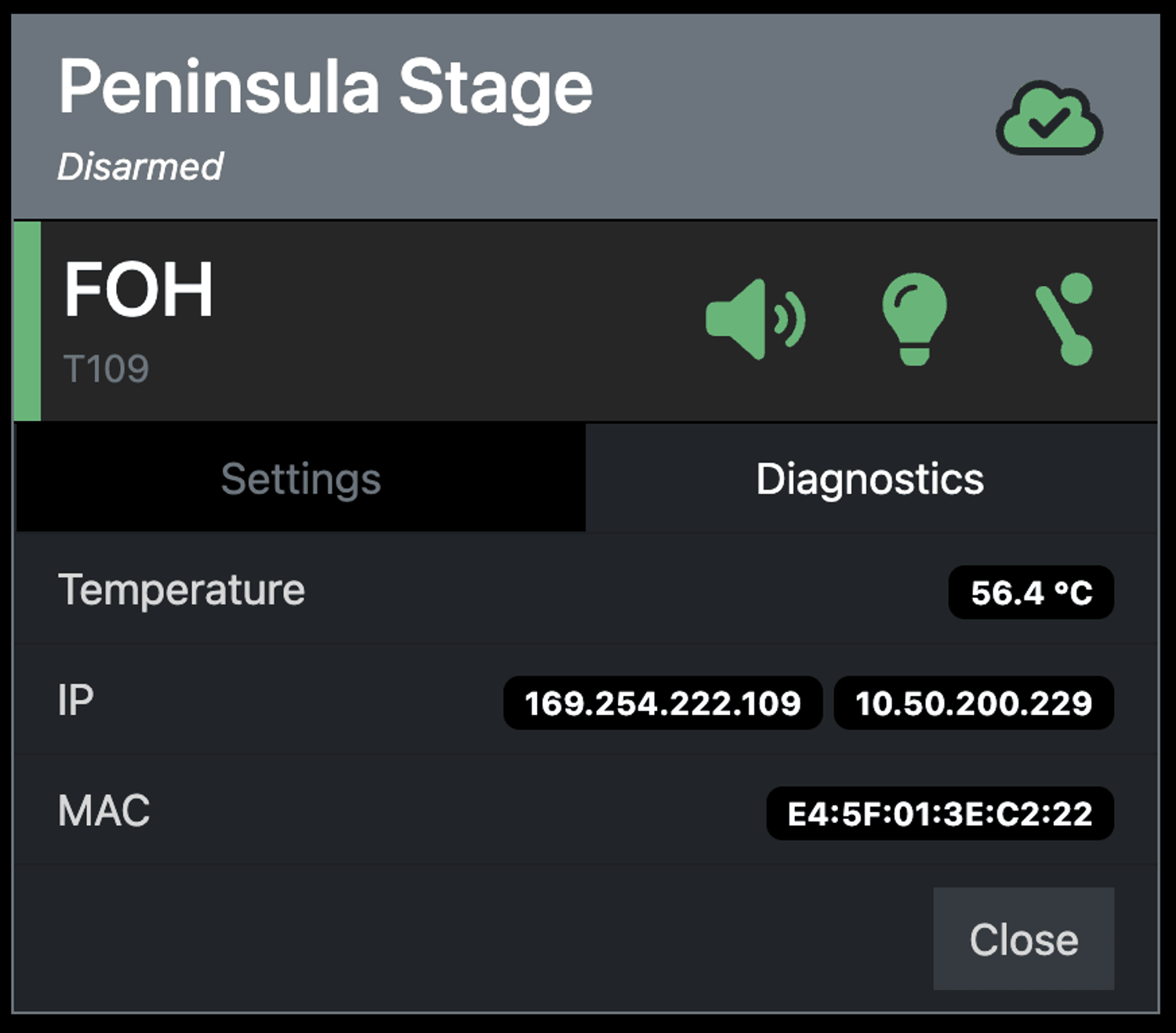
The diagnostics tab provides information on:
- Internal temperature
- IP addresses
- MAC addresses
Activation
Once zones are Armed, the Global Activation button triggers the audio override. Holding the button for 3 seconds will activate the selected zones. Holding the button for 6 seconds will trigger ALL zones. Deactivate by holding for three seconds.
Broadcast
Broadcasts are controlled from the audio section of the EAS command page.
Audio Clips
To broadcast a pre-recorded audio clip:
- Open the Sources menu.
- Select the clip by clicking on the clip. The Play button provides a local preview.
- Click Broadcast Clip.
Live Microphone
To broadcast using the live mic:
- Open the Sources menu.
- Select Live Microphone.
- Confirm that the correct mic is selected, make adjustments as necessary. The VU meter provides live feedback.
- Click Broadcast Mic.